You bought a slick new PC controller. You plug it in. Nothing happens. Your favorite game doesn’t recognize it. And now you’re stuck—staring at a fancy piece of plastic that might as well be a paperweight. This isn’t just frustrating—it kills momentum. But the fix? Simpler than most guides admit. Here’s exactly how to get your controller working, without wasting hours on outdated advice.
Why Most “Plug-and-Play” Claims Are Flat-Out Lies
Manufacturers love slapping “PC compatible” on boxes. Yet half the time, Windows sees your controller as an unknown device—or worse, ignores it entirely. Why?
Legacy drivers, missing firmware, and lazy game engine support are the real culprits. Steam handles many controllers out of the box—but not all games run through Steam Input. Non-Steam titles often rely on raw XInput or DirectInput protocols, which older or third-party controllers don’t natively support. And generic Bluetooth pairing? Forget it—unless you’re using an Xbox or PlayStation DualShock/DualSense, latency and button mapping issues will haunt you.
Bottom line: compatibility isn’t automatic. It’s engineered.
gaming accessory how to add controller: The No-BS Setup Guide
Follow these steps—no fluff, no dead ends.
Step 1: Identify Your Controller Type
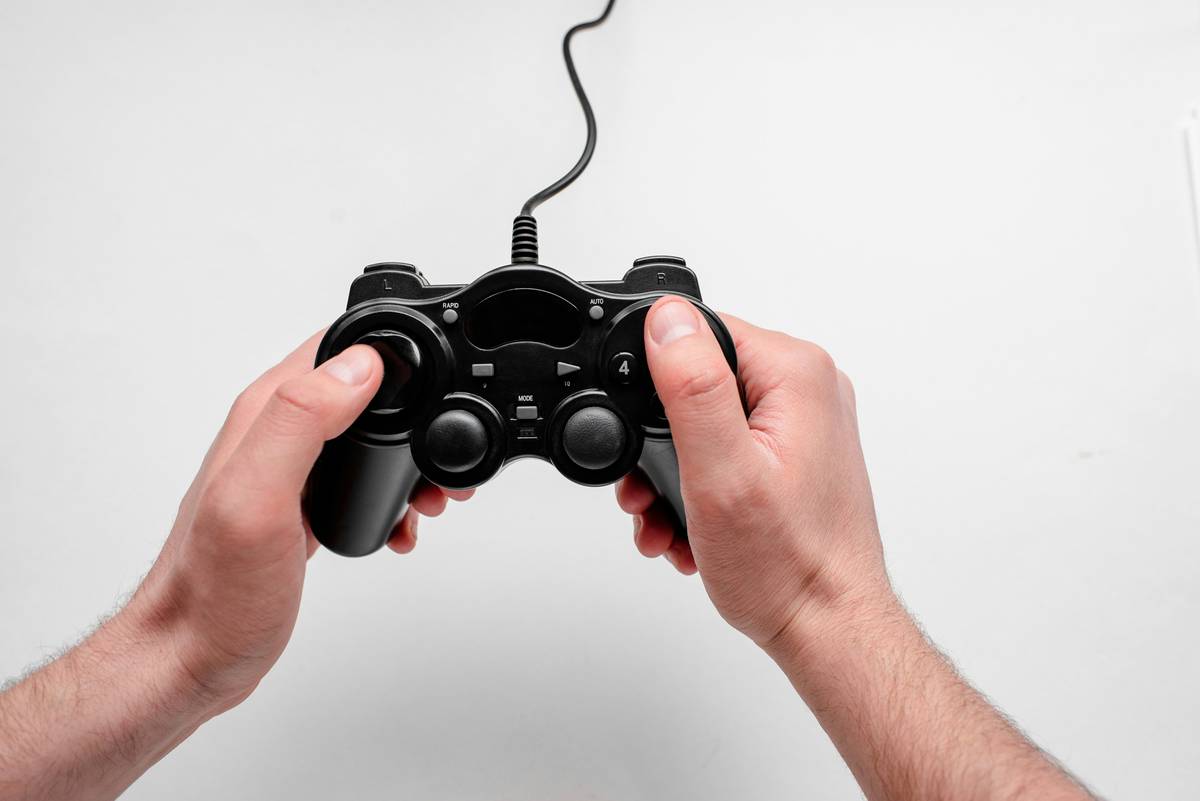
Is it wired or wireless? Xbox-branded? Generic? Third-party like 8BitDo or PowerA? Knowing this dictates your path. Xbox controllers (especially Series X/S) work natively via USB or Bluetooth. Others may need wrappers or drivers.
Step 2: Install the Right Middleware
If your controller isn’t Xbox-native, you likely need DS4Windows (for PlayStation pads) or reWASD (universal remapper). These tools translate non-XInput signals into something Windows games understand. Don’t skip this—most “not working” issues trace back to missing middleware.
Step 3: Test Outside Your Game First
Use Windows’ built-in controller tester (joy.cpl) or Steam’s Big Picture mode to verify detection. If Windows sees it but your game doesn’t, force XInput emulation via your middleware.
| Method | Best For | Setup Time | Cost |
|---|---|---|---|
| Native USB (Xbox) | Xbox Wireless/Elite controllers | Under 1 minute | $0 |
| Steam Input | All controllers (non-exclusive games) | 2-5 minutes | $0 |
| DS4Windows | PS4/PS5 DualShock/DualSense | 5-10 minutes | $0 (open-source) |
| reWASD | Obscure or legacy controllers | 10+ minutes | Free trial / ~$20 paid |
The Industry Secret Nobody Talks About: Firmware Matters More Than You Think
Here’s what even seasoned players miss: your controller’s firmware version can silently break compatibility. I once tested two identical third-party controllers—one worked flawlessly, the other glitched in every game. The difference? A hidden firmware update available only via a clunky manufacturer utility buried in a ZIP file on their Korean-language support page (yes, really).
Always check for firmware updates—even if your controller “works.” Manufacturers rarely push them automatically. And if you’re buying used? Assume it’s outdated. A five-minute firmware flash can mean the difference between buttery-smooth gameplay and unresponsive triggers during boss fights.
FAQ
Can I use any controller on PC?
Technically yes—but not natively. You’ll likely need software like reWASD or DS4Windows to translate inputs for non-Xbox pads.
Why won’t my controller work in some games but not others?
Older or indie games often only support XInput. If your controller uses DirectInput (common with PS4/PS5), it won’t register unless wrapped by middleware.
Do I need Bluetooth for wireless controllers?
Not always. Xbox controllers pair via dedicated wireless dongles or built-in Bluetooth. PlayStation pads require Bluetooth or USB—never proprietary dongles on PC.