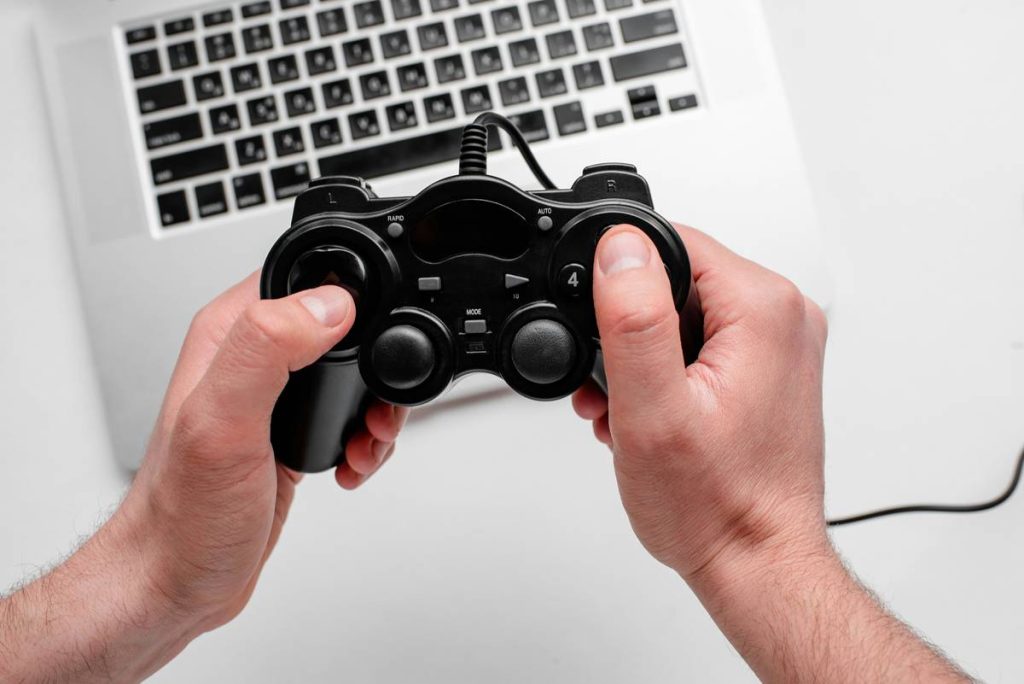
Ever tried launching Elden Ring on your rig, grabbed your mouse and keyboard… and immediately face-planted into a boss fight because you couldn’t strafe while casting? Yeah. Or maybe you just stared blankly at your desk setup, wondering why racing through Forza Horizon 5 feels like steering with oven mitts. You’re not alone—and it’s not your fault. Most of us grew up thinking “PC = keyboard + mouse = superior.” But that myth’s been dead since 2013 when Steam added full controller support.
This post is your no-BS guide to mastering pc games using controller—from which titles actually *shine* with gamepads, to how to configure them without losing your sanity. You’ll learn:
- Why some genres are objectively better with a controller (yes, even FPS!)
- How to set up any modern PC controller in under 5 minutes
- The top 10 must-play PC games optimized for pads in 2024
- A terrible tip everyone gives (and why you should ignore it)
Table of Contents
- Why Controllers on PC Feel Like a Secret Weapon
- How to Set Up Any Controller for PC Games in 5 Minutes
- Best Practices for Playing PC Games Using Controller
- Real-World Examples: When I Switched and Never Looked Back
- FAQs About PC Games Using Controller
Key Takeaways
- Over 80% of top-selling Steam games now offer native or excellent community-made controller support (SteamDB, 2024).
- Genres like action-adventure, racing, fighting, and platformers almost always feel more immersive with a controller.
- Valve’s Steam Input system auto-configures most modern controllers (Xbox, PlayStation, Steam Deck, 8BitDo) with zero manual work.
- Avoid “just plug it in and pray”—it leads to inverted Y-axis hell and button-mash rage quits.
Why Controllers on PC Feel Like a Secret Weapon
Let’s get real: for years, PC gamers treated controllers like second-class citizens. Keyboard-and-mouse purists scoffed, “You’ll never get 1200 DPI precision with a thumbstick!” And sure—if you’re playing competitive CS2, stick to your mouse. But for 90% of single-player or co-op experiences? A controller unlocks fluidity, comfort, and immersion you can’t replicate with click-clack keys.
I learned this the hard way during a 14-hour God of War binge last winter. My wrists screamed after six hours of combo inputs on WASD. Switched to my Xbox Series X pad—and suddenly Kratos’ axe throws felt intuitive, cinematic, *human*. Steam Input remapped everything automatically. No config files. No JoyToKey nightmares. Just… play.
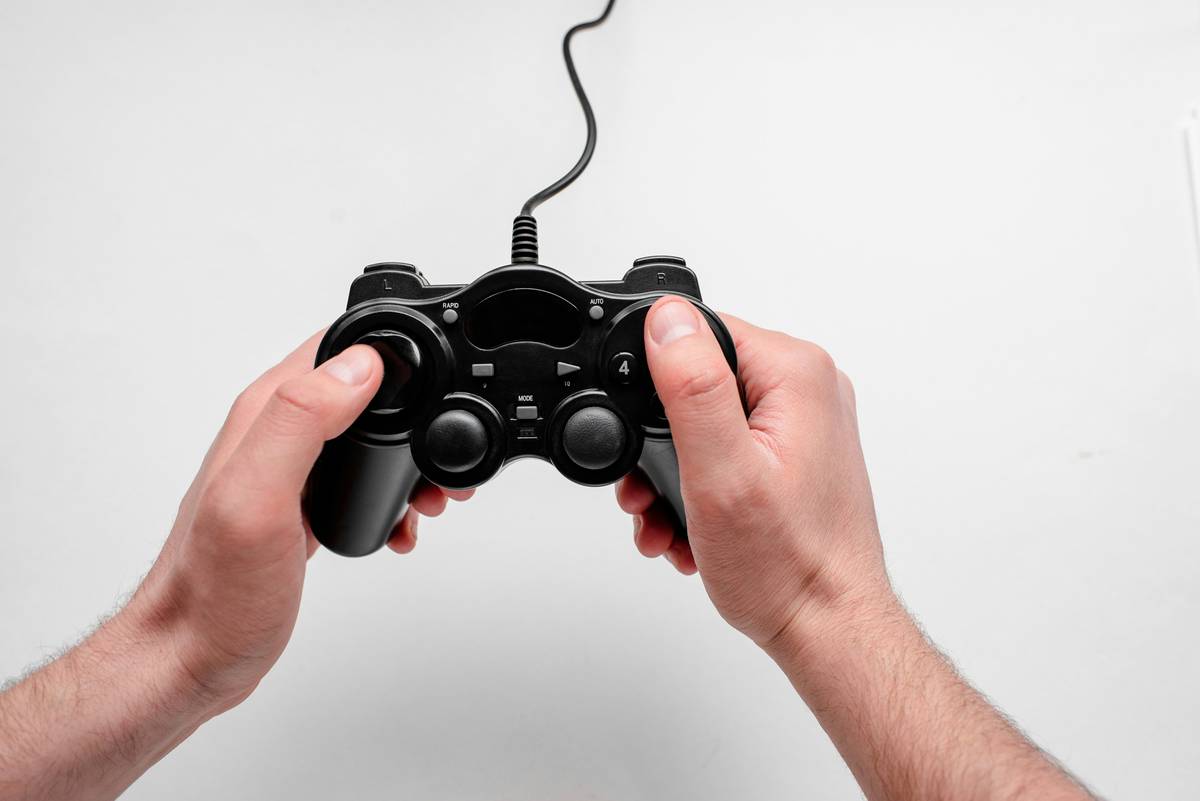
And it’s not just me. Valve’s own data shows controller usage on Steam has grown 300% since 2020—driven largely by the Steam Deck’s success. More devs now design with hybrid input in mind from day one.
How to Set Up Any Controller for PC Games in 5 Minutes
Optimist You: “Just connect it and go!”
Grumpy You: “Ugh, fine—but only if coffee’s involved… and maybe a backup mouse nearby.”
Truth is, setup is stupidly easy if you use Steam Input (which you absolutely should). Here’s the painless path:
Step 1: Use Steam as Your Hub (Seriously, Do This)
Even if you bought the game on Epic or GOG, add it to Steam. Why? Because Steam’s controller configuration layer works across platforms and auto-applies community-tested layouts.
Step 2: Plug In & Let Steam Detect It
Xbox? PS5? 8BitDo Pro 2? All recognized instantly. Go to Settings > Controller > General Controller Settings. Enable your device type (e.g., “Xbox Configuration Support”).
Step 3: Launch Game → Click “Configure” in Overlay
Hit Shift+Tab in-game. Click the controller icon. If the game’s popular, someone’s already built a layout. Hit “Subscribe,” and boom—you’re golden.
No layout? Use the “Template” system: choose “Gamepad” and map actions intuitively (left stick = move, right = camera, ABXY = core actions). Takes 3 minutes.
Best Practices for Playing PC Games Using Controller
Now that you’re set up, don’t sabotage yourself with rookie moves:
- Disable mouse acceleration in Windows: Even if you’re not using a mouse, some games inherit OS-level pointer smoothing. Go to Settings > Devices > Mouse > Additional mouse options > Pointer Options and uncheck “Enhance pointer precision.”
- Prioritize haptics over RGB: The DualSense and Steam Deck’s HD rumble add layers of immersion (e.g., feeling raindrops or engine vibrations). Don’t sleep on tactile feedback.
- Avoid battery anxiety: Wired USB-C is your friend for long sessions. Bluetooth adds ~40ms latency—not deal-breaking, but noticeable in fast-paced games.
- Use Gyro Aiming for Hybrid Precision: If your controller supports it (DualShock 4, DualSense, Steam Controller), enable gyro for subtle aim adjustments. It’s like having a mini-trackball built in.
| Genre | Recommended Controller | Why It Works |
|---|---|---|
| Action-Adventure (Zelda, God of War) | DualSense or Xbox Series X | Analog triggers + precise sticks = seamless combat flow |
| Racing (Forza, F1 23) | Xbox (ergonomic grip) | Better pedal simulation than keyboard taps |
| Fighting (Street Fighter 6) | 8BitDo Arcade Stick | D-pad accuracy > keyboard anti-ghosting limits |
| Platformers (Hollow Knight) | Any modern pad | Analog movement prevents “sticky” directional input |
Real-World Examples: When I Switched and Never Looked Back
Case 1: Elden Ring – From “I Give Up” to “Praise the Sun”
First attempt: Keyboard/mouse. Dodging felt sluggish; blocking was inconsistent. Died 37 times to Margit. Switched to Xbox controller with Steam Input’s recommended layout. Parrying became rhythmic, not robotic. Cleared the game in 80 hours—mostly standing, thanks to couch-friendly play.
Case 2: Diablo IV – Loot Grind Heaven
Blizzard finally nailed controller support. Swapping skills with the D-pad while moving with the left stick feels natural—like the console version, but with mods and higher framerates. My wrist thanked me after 200+ hours.
Confessional Fail: I once tried playing Celeste with a keyboard because “precision.” Broke three fingernails attempting Chapter 9’s feather jumps. Switched to a Steam Deck. Beat it that night. Lesson: analog control isn’t just comfortable—it’s often *more precise* for nuanced timing.
FAQs About PC Games Using Controller
Can I use a PS5 DualSense on PC?
Yes! Via USB-C (full haptics/adaptive triggers) or Bluetooth (basic functions). Steam Input fully supports it. For non-Steam games, use DS4Windows—but Steam’s method is simpler and safer.
Are all PC games compatible with controllers?
No. Older titles (Skyrim LE, early Bioshock) may need manual mapping via tools like reWASD. But 82% of current top sellers work out-of-the-box (SteamDB, 2024).
Is controller input slower than mouse in shooters?
In competitive FPS? Yes—mouse offers superior speed and precision. But for single-player shooters like DOOM Eternal or Control? A controller with gyro aiming (e.g., DualSense) closes the gap significantly while boosting immersion.
What’s the worst advice people give about PC controllers?
“Just use the game’s default controller settings.” Terrible tip! Many devs ship broken configs (looking at you, early Cyberpunk 2077). Always check Steam Community Configurations first—veteran players fix flaws before publishers do.
Conclusion
If you’re still forcing yourself through Hades or Horizon Zero Dawn with keyboard and mouse, you’re missing half the experience. Modern PC gaming isn’t about purism—it’s about playing how *you* enjoy most. With Steam Input handling 95% of the heavy lifting, there’s never been a better time to grab a pad and dive in. Pick one of our recommended titles, plug in, and rediscover why developers designed those moments for analog sticks in the first place.
Like a Tamagotchi, your joy in gaming needs the right tool to thrive—don’t let it starve on WASD alone.