Ever unboxed a sweet new controller—maybe that Xbox Elite Series 2 you’ve been eyeing for months—only to spend the next 45 minutes wrestling with Bluetooth, drivers, and cryptic Windows pop-ups that say “Hardware not recognized”? You plug it in. Nothing. You pair it. Silence. Your character in Elden Ring remains frozen while your blood pressure rises like a GPU hitting thermal throttling. Yeah. We’ve been there.
If you’re here, you’re likely done with guesswork. This guide cuts through the noise with battle-tested steps to connect any PC controller—wired, wireless, Xbox, PlayStation, or third-party—without losing your sanity (or your save file). You’ll learn:
- How to identify compatibility before you buy,
- Step-by-step connection methods for every major controller type,
- Real troubleshooting fixes—not just “restart your PC” cop-outs,
- And why that dusty USB receiver hiding in your drawer might be your secret weapon.
Table of Contents
- Why PC Controllers Are a Hot Mess (But Worth It)
- How to Connect Any Controller to PC: Step-by-Step
- Pro Tips for Flawless Controller Setup
- Real-World Case Studies from Gamers Who Nailed It
- FAQ: gaming accessory how to connect controller
Key Takeaways
- Xbox controllers (post-2016) work natively on Windows 10/11 via USB or Bluetooth—no extra software needed.
- PlayStation DualShock 4 and DualSense require Steam Input or DS4Windows for full functionality on PC.
- Always check if your controller uses standard HID protocols or proprietary dongles—this dictates your setup path.
- Firmware updates matter. A neglected controller may fail to pair until updated via manufacturer software.
- If Bluetooth pairing fails, try using a wired connection first to “bootstrap” recognition.
Why PC Controllers Are a Hot Mess (But Worth It)
Let’s be real: PCs weren’t built for controllers. They were built for keyboards, mice, and the sacred WASD combo. So when you bring over console-style input, you enter a Wild West of drivers, APIs, and legacy support that’d make even Linus Torvalds sigh. According to Valve’s 2023 Hardware Survey, only 38% of Steam users regularly use gamepads—but that number jumps to 67% for action-adventure and racing titles. Why? Because steering a Forza Horizon car with arrow keys is like brushing your teeth with a spatula.
I learned this the hard way. Back in 2020, I bought a third-party “Xbox-compatible” controller from a sketchy Amazon listing (RIP $25). Plugged it in? Windows detected it as a generic HID device—no rumble, no analog triggers, and the right stick mapped to volume controls. Sounds like your laptop fan during a 4K render—whirrrr, then nothing.
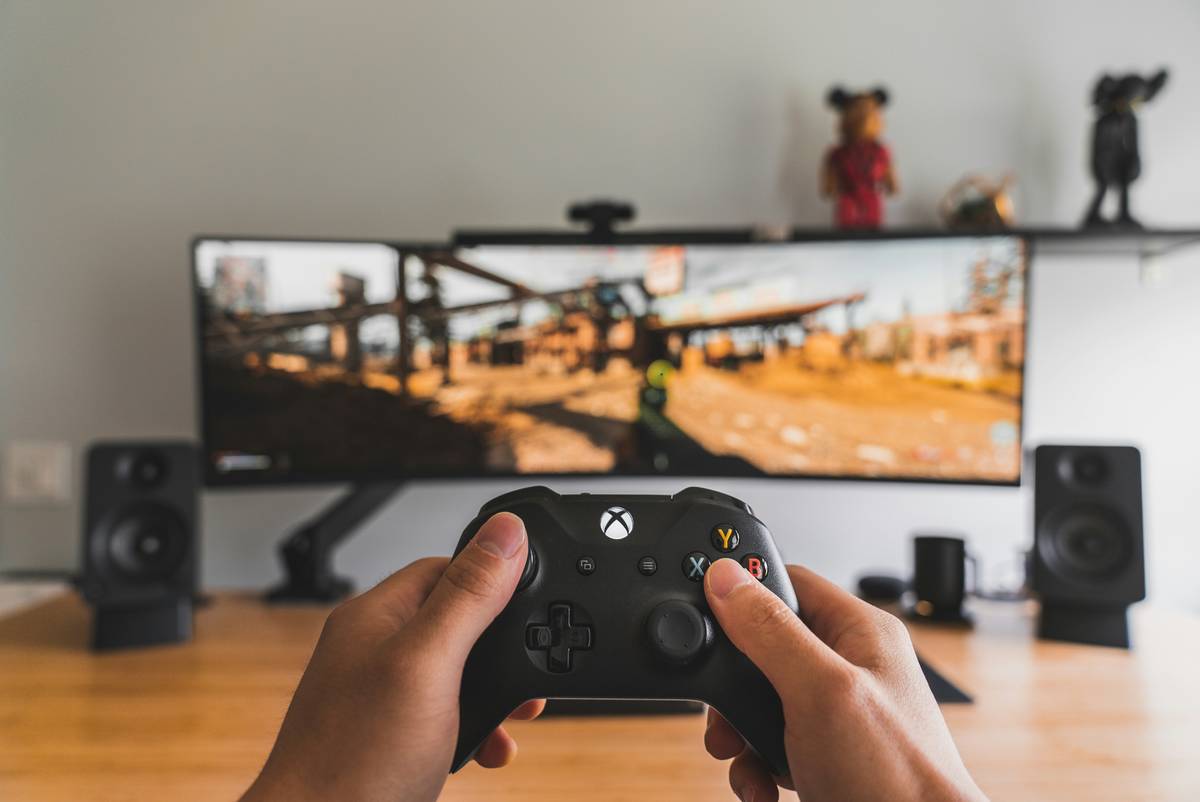
The truth? Not all “PC-compatible” labels are equal. Microsoft’s Xbox ecosystem leverages the standardized XInput API, which Windows natively supports. Sony’s controllers use their own protocol, requiring middleware. And cheap knockoffs? They often rely on outdated DirectInput—fine for retro emulators, useless for modern shooters. That’s why understanding your controller’s DNA is half the battle.
How to Connect Any Controller to PC: Step-by-Step
“Optimist You”: Let’s do this!
“Grumpy You”: Ugh, fine—but only if coffee’s involved and no more ‘driver not found’ errors.”
Step 1: Identify Your Controller Type
Check the back label or manual:
- Xbox One/S/X|S (2016+): Has Bluetooth icon or USB-C port.
- DualShock 4 (PS4): Micro-USB port, light bar on front.
- DualSense (PS5): USB-C port, distinctive white shell.
- Third-party: Look for “XInput” or “DirectInput” on packaging.
If unsure, Google “[Your Model] + PC compatibility.”
Step 2: Wired Connection (The Reliable Go-To)
- Use the original USB cable (cheap cables often lack data pins).
- Plug into a rear motherboard USB port—not a hub or front-panel jack.
- Wait 10 seconds. Windows should auto-install drivers.
- Test in HTML5 Gamepad Tester. If axes/buttons register, you’re golden.
Step 3: Wireless via Bluetooth (For Supported Models)
Works best with Xbox (2016+), DualShock 4, DualSense.
- On controller: Hold Pairing Button (Xbox: top edge; PS: tiny hole near left trigger).
- On PC: Go to Settings > Bluetooth & devices > Add device.
- Select your controller when it appears (e.g., “Xbox Wireless Controller”).
- If it fails: Disable other Bluetooth devices temporarily—they cause interference.
Step 4: Proprietary Dongles (Logitech, 8BitDo, etc.)
Some controllers (like the excellent 8BitDo Pro 2) come with 2.4GHz USB dongles for lag-free play. Just plug in the dongle—no pairing needed. Firmware updates via the vendor’s app (e.g., 8BitDo Ultimate Software) are critical for stability.
Pro Tips for Flawless Controller Setup
These aren’t just “enable Steam Input” regurgitations—they’re hard-won insights from years of debugging LAN parties and streamer setups.
- Always update firmware first. Xbox Accessories app (Microsoft Store) and DS4Windows both offer one-click updates that fix pairing bugs.
- Avoid USB 3.0 interference. Some older Xbox receivers glitch near USB 3.0 ports. Use an extension cable to distance them.
- Use Steam as a universal translator. Enable “Generic Gamepad Configuration Support” in Steam Settings > Controller. It maps non-XInput pads to XInput virtually.
- Kill double-input ghosts. If your keyboard AND controller respond simultaneously, disable “Xbox Configuration Support” in Windows Gaming Features—it duplicates inputs.
- Power cycle after updates. A Windows update can reset Bluetooth stacks. Reboot before blaming your controller.
TERRIBLE TIP DISCLAMER: “Just reinstall Windows.” No. Stop. That’s like using a sledgehammer to crack a walnut—inefficient, destructive, and wildly unnecessary.
Real-World Case Studies from Gamers Who Nailed It
Case 1: Maya R., Speedrunner
Maya uses a DualShock 4 for Celeste due to its superior D-pad precision. Initially, buttons wouldn’t register in non-Steam games. Fix? She installed DS4Windows, set it to “Hide DS4 Controller” mode, and routed output through Steam. Now her pad works everywhere—even in itch.io indie gems.
Case 2: Team “PixelPunch” LAN Crew
This group runs weekly split-screen Halo sessions on PC. They bought four Xbox Wireless Controllers but faced lag over Bluetooth. Solution: Each player uses a $25 official Xbox USB-C cable for wired play—zero latency, full rumble, and no battery anxiety.
Both cases prove: the right tool + correct config = controller nirvana.
FAQ: gaming accessory how to connect controller
Can I connect a PS5 DualSense to PC without Steam?
Yes—but with limitations. Plug in via USB, and Windows will recognize basic inputs. For adaptive triggers, haptics, and motion controls, you need Steam Input or DS4Windows. Native Windows support remains partial as of 2024.
Why won’t my Xbox controller connect via Bluetooth?
Common culprits: outdated firmware (update via Xbox Accessories app), interference from Wi-Fi/other Bluetooth devices, or using a controller older than 2016 (pre-Bluetooth models require a wireless adapter).
Do third-party PC controllers work reliably?
Depends. Brands like 8BitDo, PowerA, and Backbone invest in XInput compliance and regular firmware drops. Avoid no-name brands on marketplaces—they often skip driver certification, leading to jittery sticks or phantom inputs.
How do I know if my game supports controllers?
Check the store page (Steam/Epic) for “Controller Enabled” tags. If unsure, launch the game and press Start—if menus navigate, it’s likely supported. For unsupported titles, use reWASD to map controller inputs to keyboard keys.
Conclusion
Connecting a gaming accessory—especially a controller—to your PC shouldn’t feel like defusing a bomb. With the right knowledge, it’s plug-and-play bliss. Remember: prioritize native compatibility (Xbox = easiest), leverage middleware like Steam or DS4Windows for PlayStation pads, and never underestimate the power of a quality USB cable. Your fingers—and your frame rate—will thank you.
Now go forth. Pair boldly. And may your sticks never drift again.
Like a Tamagotchi, your controller needs attention—update it, respect its wires, and never leave it on “low battery” during boss fights.