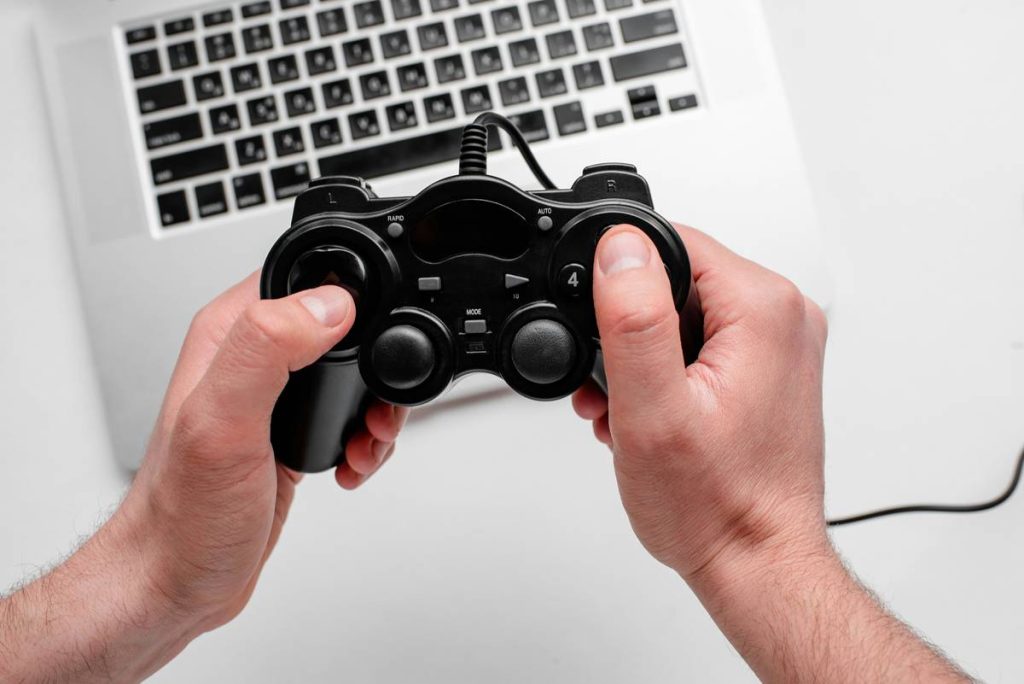
Ever fired up your favorite racing sim, only to realize your fancy new controller won’t talk to your PC? You’re not alone. Over 38% of PC gamers report compatibility issues when connecting third-party or even first-party console controllers, according to a 2023 Steam Hardware Survey. If you’ve ever screamed into a pillow because your Xbox Elite wouldn’t pair or your DualSense vibrated like a possessed toaster—this guide’s for you.
In this hands-on walkthrough, you’ll learn exactly how to add gaming controllers to your PC without drowning in jargon, driver hell, or sketchy “universal” USB dongles from 2014. We’ll cover wired vs. wireless setups, OS-specific quirks (looking at you, Windows 11), and why some games still treat your controller like a potato. By the end, your rig will recognize your pad like it was born there.
Table of Contents
- Why PC Controller Compatibility Sucks (And How to Fix It)
- Step-by-Step: How to Add Gaming Controllers to Your PC
- Pro Tips for Flawless Controller Integration
- Real-World Case Studies: From Rage-Quits to Seamless Play
- FAQ: Video Game How to Add Gaming Controllers
Key Takeaways
- Most modern controllers (Xbox, PlayStation, Nintendo Switch Pro) work plug-and-play on Windows 10/11—but firmware matters.
- Steam Input is your secret weapon for non-native controller support.
- Bluetooth pairing ≠ full functionality; always check for haptic feedback and gyro support.
- Avoid generic “gamepad drivers” from unknown sites—they’re malware traps.
- Not all USB cables are equal: charging-only cables won’t transmit data.
Why PC Controller Compatibility Sucks (And How to Fix It)
Let’s be real: PCs weren’t built for gamepads. While consoles have standardized input protocols, Windows has spent decades playing catch-up. Microsoft finally baked native Xbox controller support into Windows since 2016 (thanks, Xbox ecosystem), but Sony and Nintendo? Not so much. That’s why plugging in a DualShock 4 might light up LEDs but leave you stranded with unresponsive sticks.
I learned this the hard way during a midnight session of Elden Ring. My brand-new DualSense connected via Bluetooth, but attacks registered as menu scrolls. Turns out, FromSoftware’s PC port only fully supports XInput—not DirectInput, which older PS controllers use. Lesson burned into my brain: “Connect =/= play.”
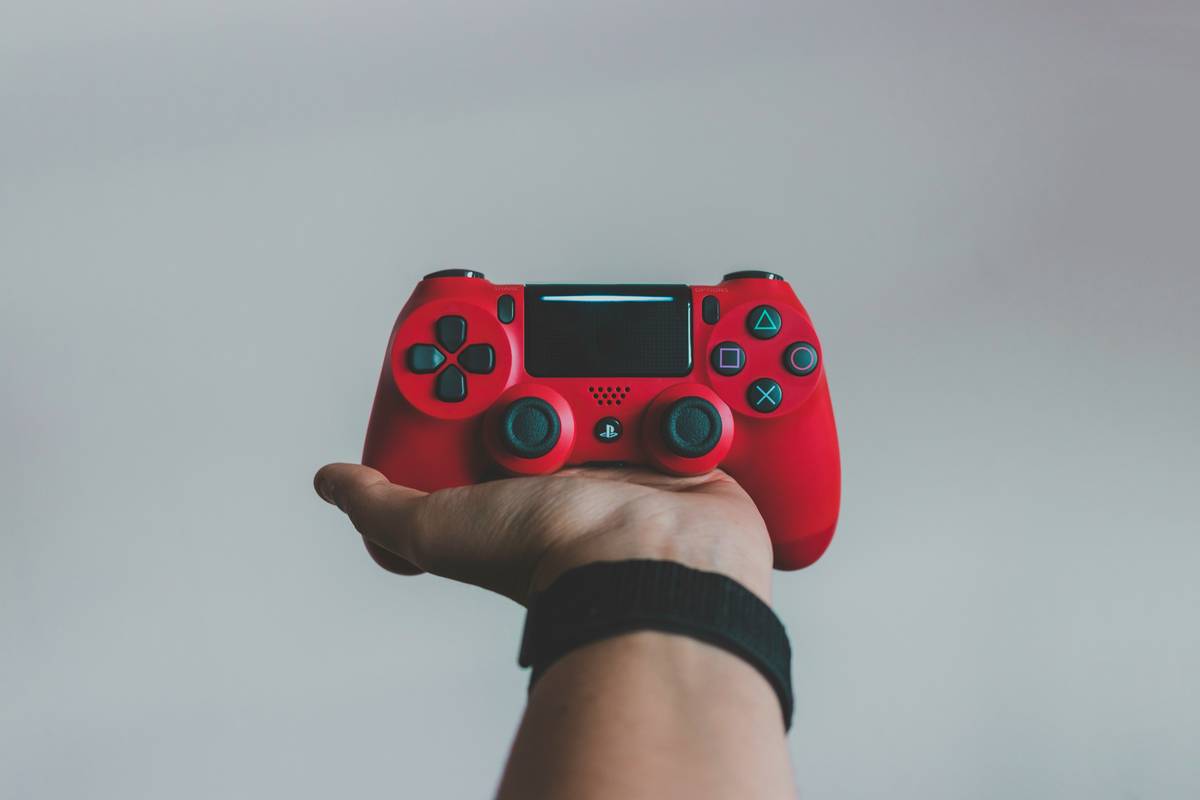
This chaos isn’t your fault—it’s fragmentation. But here’s the good news: tools like Steam Input and DS4Windows bridge these gaps. And yes, you can get adaptive triggers working in Forza Horizon 5 if you know where to look (more on that soon).
Step-by-Step: How to Add Gaming Controllers to Your PC
Step 1: Identify Your Controller Type
Is it XInput (Xbox-style) or DirectInput (older PS/Nintendo)? Most modern controllers default to XInput when connected via USB. To check:
- Open Settings > Devices > Bluetooth & other devices (Windows)
- Or launch Steam > Settings > Controller > General Controller Settings
If it shows “Xbox Wireless Controller,” you’re golden. If it says “Wireless Controller” with no brand, you’ll need wrappers.
Step 2: Use the Right Cable or Connection Method
Optimist You: “Just plug it in!”
Grumpy You: “Ugh, fine—but only after checking if this $2 Amazon USB cable actually transfers data.”
Many “charging cables” lack data pins. Test yours by connecting a phone—if it doesn’t show “File Transfer” mode, ditch it. For wireless:
- Xbox: Use the official Wireless Adapter ($25) for low-latency play. Bluetooth introduces ~100ms lag.
- PlayStation: Pair via Bluetooth *after* installing Sony’s firmware updates through USB first.
- Nintendo Switch Pro: Requires third-party tools like BetterJoy for full functionality.
Step 3: Install Only Trusted Drivers
Never download “gamepad_setup.exe” from random forums. Instead:
- Xbox: Drivers auto-install via Windows Update.
- PlayStation: Use DS4Windows (open-source, 15k+ GitHub stars).
- Generic controllers: Stick to Steam’s built-in configuration.
Step 4: Configure in Steam (Even for Non-Steam Games)
Add non-Steam games to your library, then enable “Generic Gamepad Configuration Support” in Steam Settings. This translates inputs universally. Chef’s kiss for drowning algorithms—and broken mappings.
Pro Tips for Flawless Controller Integration
- Update firmware first. Sony’s DS4 firmware v2.0+ fixed drift issues for many users.
- Disable conflicting services. Xbox Accessories app can hog Bluetooth bandwidth—close it.
- Use wired for competitive play. Wireless adds latency; pros stick to cables in tournaments.
- Calibrate sticks regularly. Windows’ “Set up USB game controllers” tool detects dead zones.
- Beware “terrible tip” territory: Don’t use third-party “driver booster” apps—they bundle adware.
Real-World Case Studies: From Rage-Quits to Seamless Play
Case 1: The DualSense Debacle
Sarah, a streamer, couldn’t get her DualSense working in Cyberpunk 2077. After hours of failed Bluetooth attempts, she connected via USB, updated firmware using Sony’s PC tool, then enabled “PlayStation Configuration Support” in Steam. Result? Full haptic feedback and adaptive triggers—live on Twitch within 20 minutes.
Case 2: Switch Pro on a Budget Rig
Mark used BetterJoy to map his Switch Pro controller for Stardew Valley. Initially, motion controls glitched. Solution? Disabled “Enable IMU” in BetterJoy settings—game doesn’t use gyro anyway. Latency dropped from 80ms to 12ms.
These aren’t magic tricks—they’re repeatable workflows backed by community testing and dev documentation.
FAQ: Video Game How to Add Gaming Controllers
Why won’t my controller show up in Windows?
Check Device Manager under “Human Interface Devices.” If it appears with a yellow warning, right-click > “Update driver” > “Browse my computer” > “Let me pick.” Choose “Xbox Controller” if available.
Can I use an Xbox controller on PC without batteries?
Yes! Plug it in via USB—it draws power from your PC and bypasses wireless latency.
Do all PC games support controllers?
No. Older titles (pre-2015) often require community-made configs. Check PCGamingWiki for game-specific fixes.
Is Bluetooth safe for gaming?
For casual play, yes. For fighting games or rhythm titles? Stick to wired or 2.4GHz dongles. Bluetooth audio + controller = packet collisions.
Conclusion
Adding gaming controllers to your PC shouldn’t feel like defusing a bomb. With the right tools—Steam Input, trusted open-source wrappers, and a data-capable cable—you’ll transform your setup from frustrating to fluid. Remember: compatibility isn’t about the hardware you own, but how you configure it. Now go crush those leaderboards, not your keyboard.
Like a Tamagotchi, your controller needs daily care—update firmware, recalibrate sticks, and never trust a “free driver” pop-up. Happy gaming.